
As an Amazon Associate, OmniTechPro earns from qualifying purchases. If you buy a key through a link on this page, Amazon pays us a small commission at no extra cost to you. We only recommend gear we’d put on our own desks.
Most of our clients already use multi-factor authentication. A code shows up by text or in an authenticator app; you type it in, and you’re in. That’s a big step up from a password alone. The problem is that criminals have caught up. A fake Microsoft 365 sign-in page will happily take your password and the six-digit code, pass them along to the real site in real time, and log the attacker in as you.
A security key closes that door. It’s a small USB device, about the size of a house key, and it’s the one form of MFA that a fake login page can’t trick. For $30 to $100 per person, it’s one of the cheapest security upgrades a small office can make.
What a security key actually does
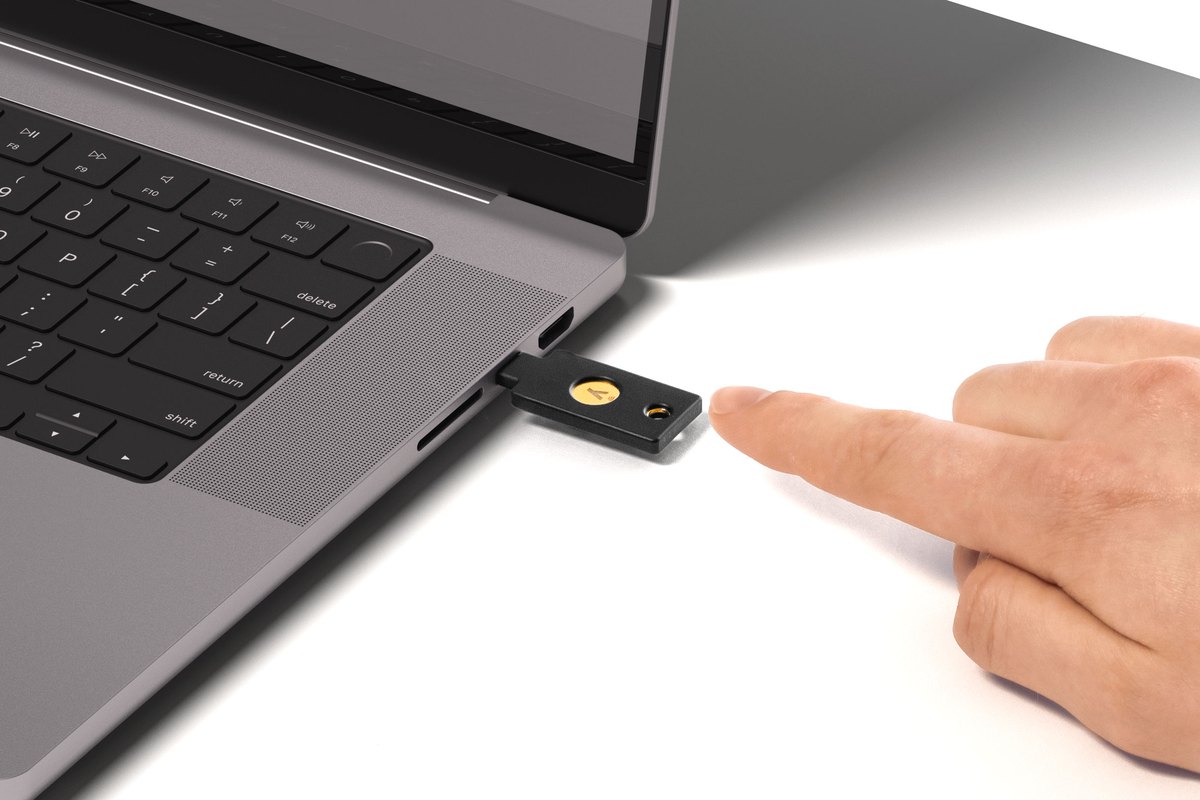
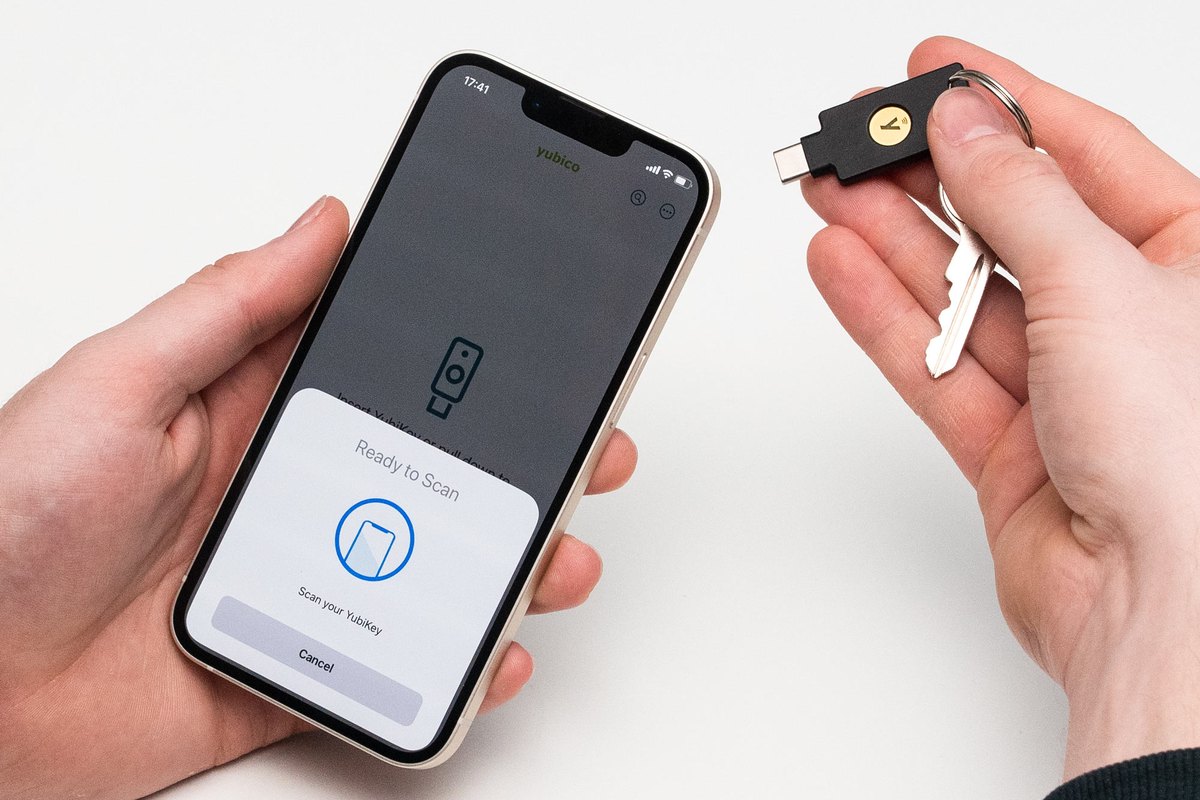
When you sign in, the website asks for a key to verify who you are. You tap the gold contact on the key (or tap the key to the back of your phone), and the key answers. There’s no code to read and nothing to type.
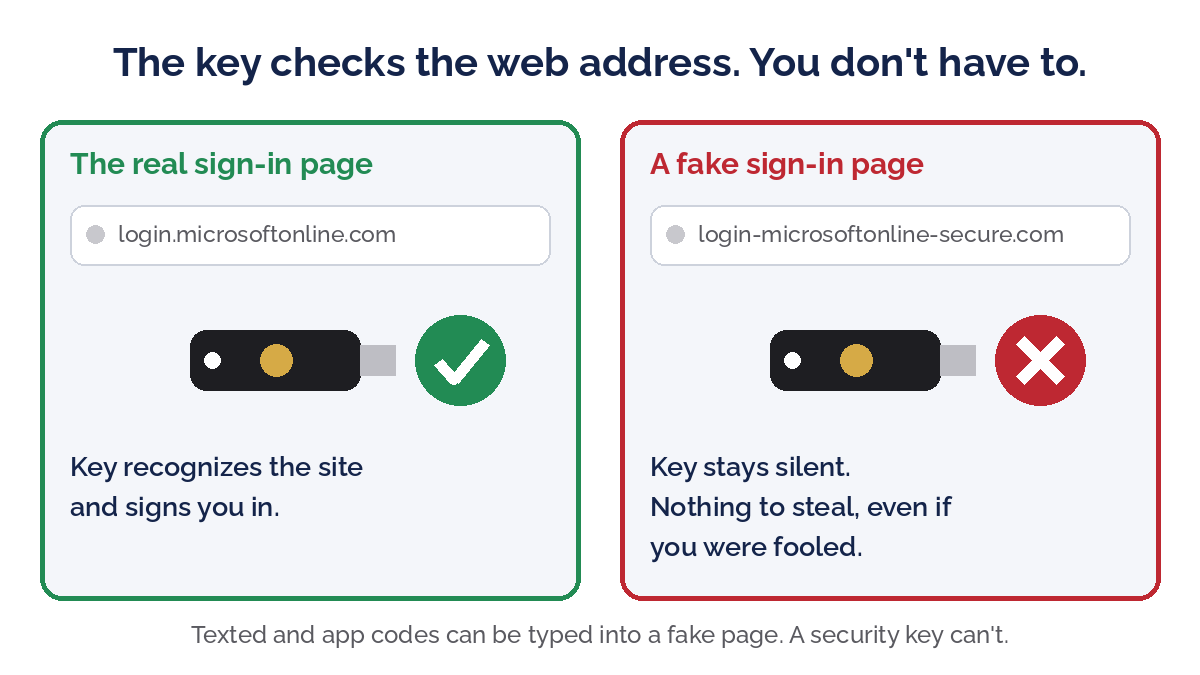
Here’s the clever part: the key checks the web address it’s talking to. Your key was registered with the real login.microsoftonline.com. If a phishing email sends you to login-microsoftonline-secure.com, the key simply won’t answer. You can be fooled. The key can’t.
Why it beats texted codes and authenticator apps
- Phishing-proof. Codes can be typed into a fake site. A key can’t be. It’s why Google, Microsoft, and the federal government’s cybersecurity agency (CISA) all point to this kind of MFA as the gold standard.
- No SIM-swap risk. Text codes go to whoever controls your phone number. Criminals talk phone carriers into moving numbers every day. A key doesn’t care about your phone number.
- No push fatigue. Attackers who have your password sometimes spam you with “Approve sign-in?” prompts at 2 a.m., until someone taps Approve to stop it. With a key, there’s nothing to approve by accident.
- Faster. Plug in, touch, done. No hunting for your phone, no codes expiring while you type.
- Nothing to charge or update. No battery, no app, and it’s waterproof and crush-resistant, so it holds up fine on a keychain.
- Works when your phone doesn’t. Dead battery, new phone, no cell signal in the back office. The key still works.
Where you can use one
Security keys work with the accounts that matter most to a small business:
- Microsoft 365 and Google Workspace (your business email is the account to protect first)
- Apple Account, Google and Microsoft personal accounts (Apple requires you to register at least two keys)
- Password managers like Bitwarden, 1Password and Keeper
- Facebook, which protects the business pages you manage
- Login.gov and ID.me, the sign-ins behind many government and tax sites
Not every bank supports them yet. Look for “security key,” “passkey,” or “FIDO” in an account’s security settings.
Which YubiKey should you buy?
Yubico makes the most widely supported keys, and they’re the brand we recommend to clients. The only real decision is which plug matches your devices. Look at the ports on your computer and your phone, then pick from the list below.
Compare them at a glance
| Key | Plug | NFC | Passkeys | Fingerprint | Best for |
|---|---|---|---|---|---|
| YubiKey 5C NFC | USB‑C | ✅ | ✅ | ✖ | Most people: newer laptops and any phone |
| YubiKey 5 NFC | USB‑A | ✅ | ✅ | ✖ | Desktops and older laptops |
| Security Key C NFC | USB‑C | ✅ | ✅ | ✖ | Budget pick for email and password managers |
| Security Key NFC | USB‑A | ✅ | ✅ | ✖ | Budget pick for older computers |
| YubiKey 5C Nano | USB‑C | ✖ | ✅ | ✖ | Leaving plugged into an office computer |
| YubiKey 5 Nano | USB‑A | ✖ | ✅ | ✖ | Leaving plugged into an older desktop |
| YubiKey 5Ci | USB‑C + Lightning | ✖ | ✅ | ✖ | iPhone 14 and earlier, Lightning iPads |
| YubiKey Bio C | USB‑C | ✖ | ✅ | ✅ | Fingerprint instead of a PIN |
| YubiKey Bio | USB‑A | ✖ | ✅ | ✅ | Fingerprint on older computers |
| 5C NFC + 5C Nano bundle | USB‑C (two keys) | ✅ (5C NFC) | ✅ | ✖ | A primary key plus a backup in one box |
Best for most people: YubiKey 5C NFC
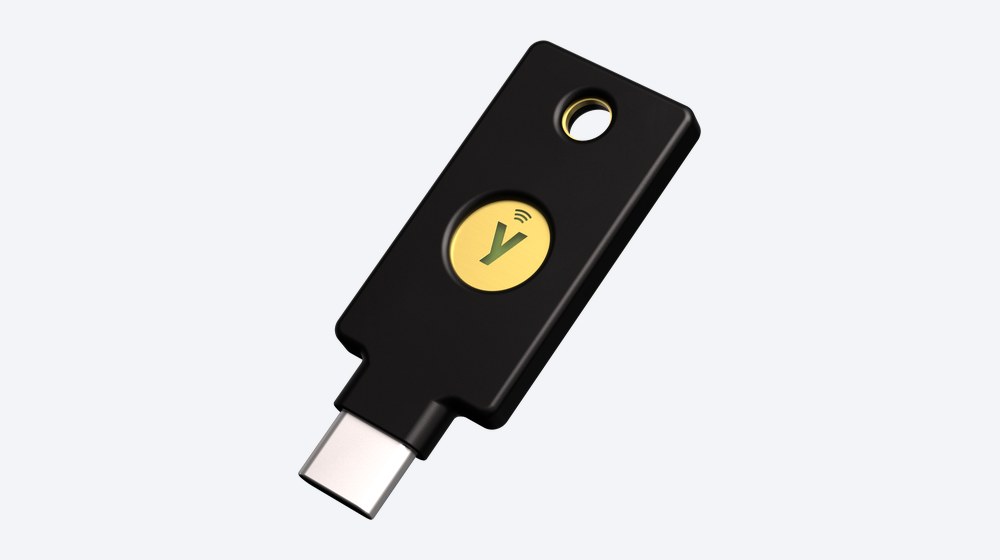
USB-C for current laptops, plus NFC so you can tap it to the back of an iPhone or Android phone. If you’re not sure which to get, get this one. It also stores codes for sites that only support authenticator apps via the free YubiKey Authenticator app.
For computers with the older rectangular USB port: YubiKey 5 NFC
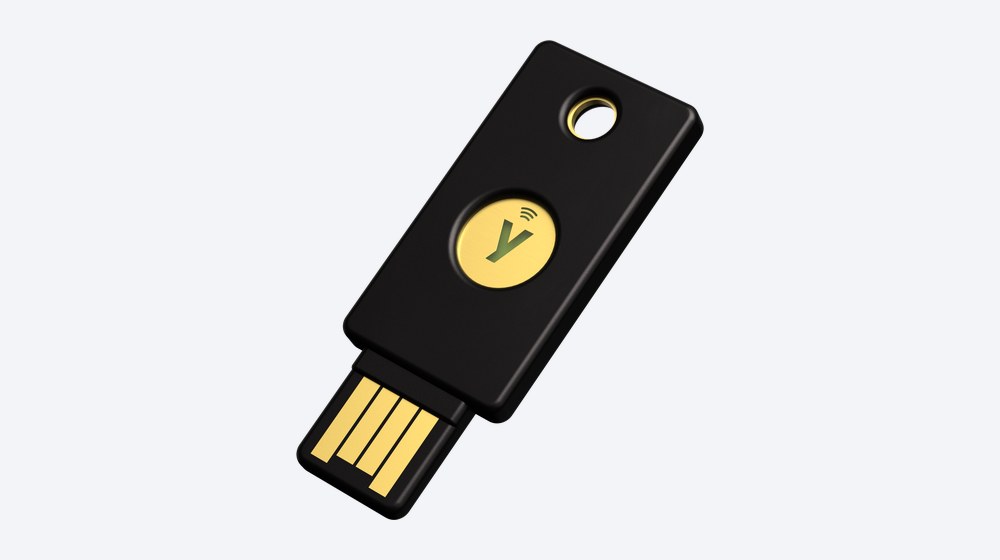
Same key with a USB-A plug. A good fit for desktops and older laptops, and the NFC still works with your phone.
On a budget: Security Key C NFC or Security Key NFC
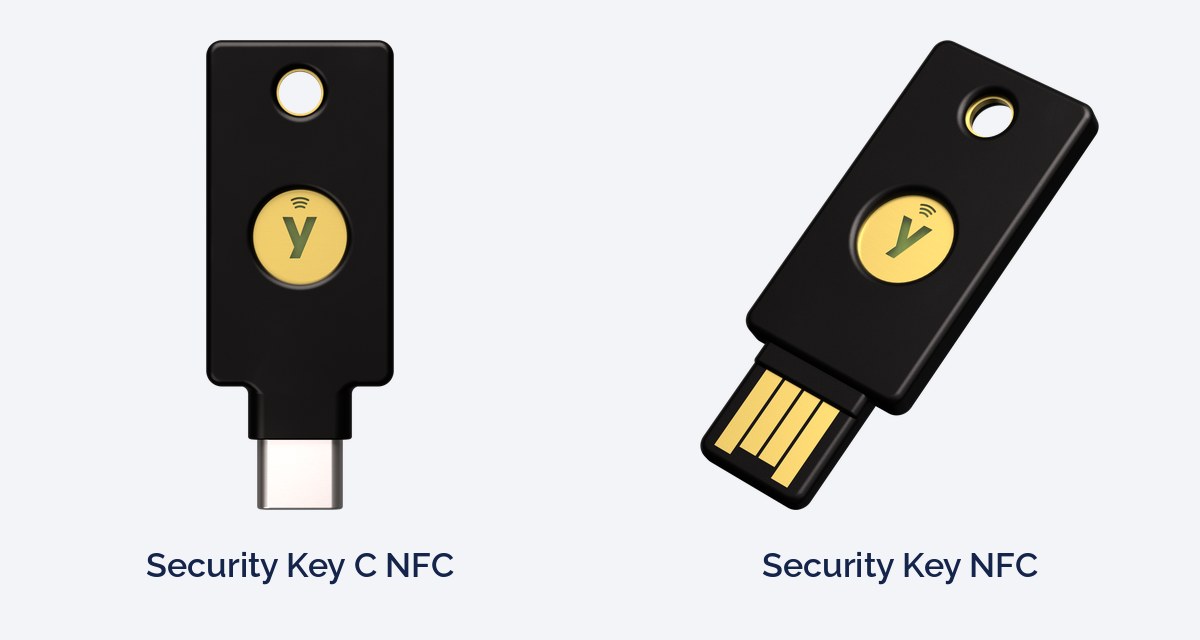
Yubico’s blue keys cost about half as much. They handle passkeys and FIDO2 logins, which covers Microsoft 365, Google and most modern sites. What they skip are the extras: authenticator codes, smart card and the older one-time-password features. For an employee who just needs to protect email and a password manager, this is plenty.
Security Key C NFC (USB-C) on Amazon
Security Key NFC (USB-A) on Amazon
Leave it plugged in: YubiKey 5C Nano or 5 Nano
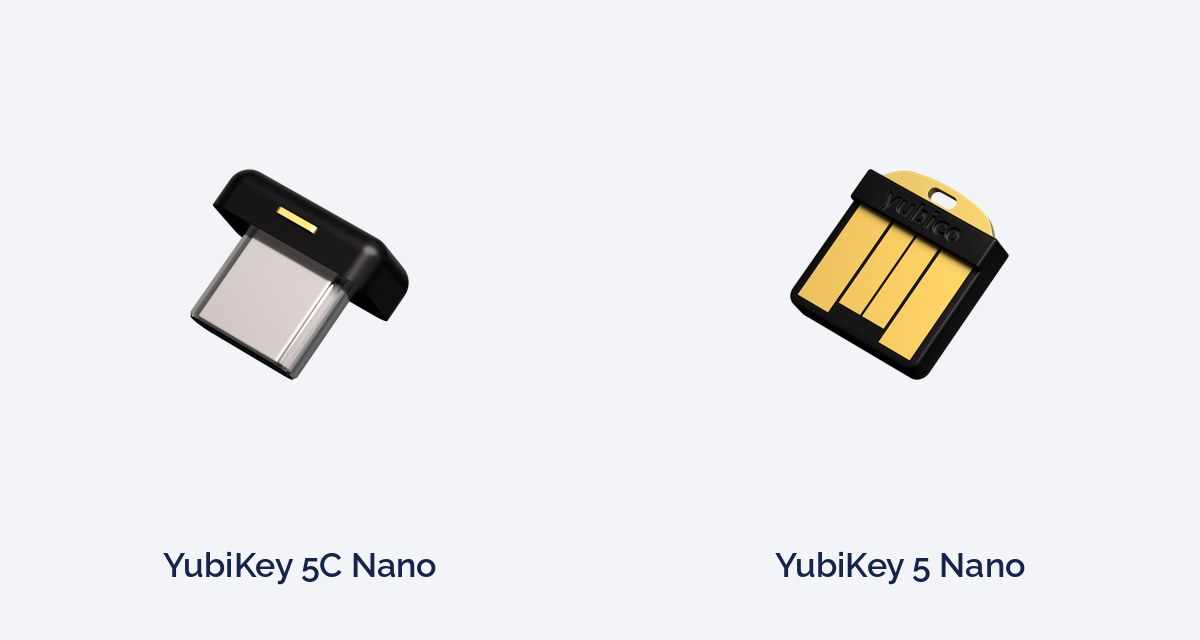
A tiny key that sits almost flush in the port and stays there. Great for an office desktop you sign into all day. One caution: a key that never leaves the laptop goes wherever the laptop goes, so if you choose a Nano for a laptop, set a PIN on it and keep a second key somewhere else.
YubiKey 5C Nano (USB-C) on Amazon
YubiKey 5 Nano (USB-A) on Amazon
Older iPhone or iPad with a Lightning port: YubiKey 5Ci
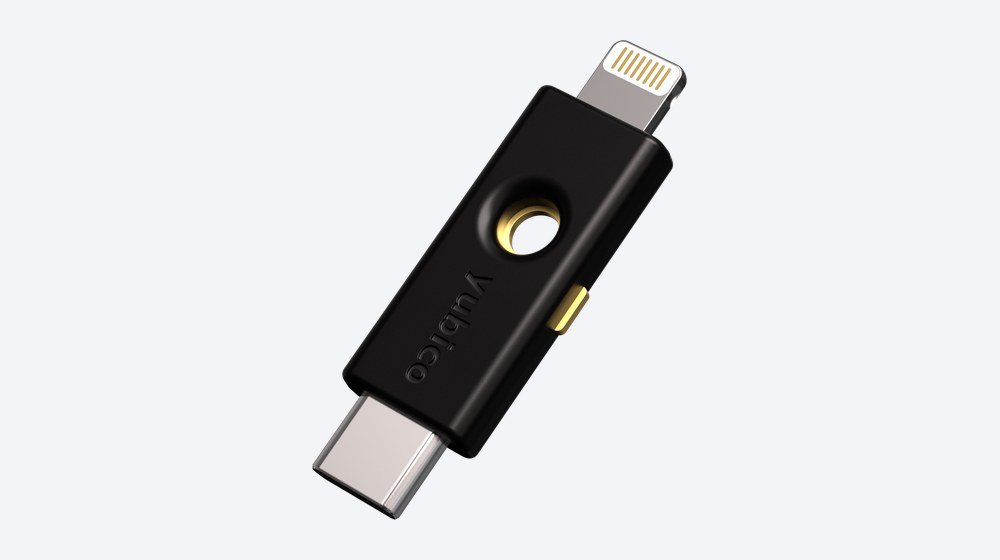
USB-C on one end, Lightning on the other. iPhone 15 and newer use USB-C, so the 5C NFC above already covers them. The 5Ci is for the iPhone 14 and earlier, or a Lightning iPad that never gets near NFC.
Fingerprint instead of a PIN: YubiKey Bio C or YubiKey Bio
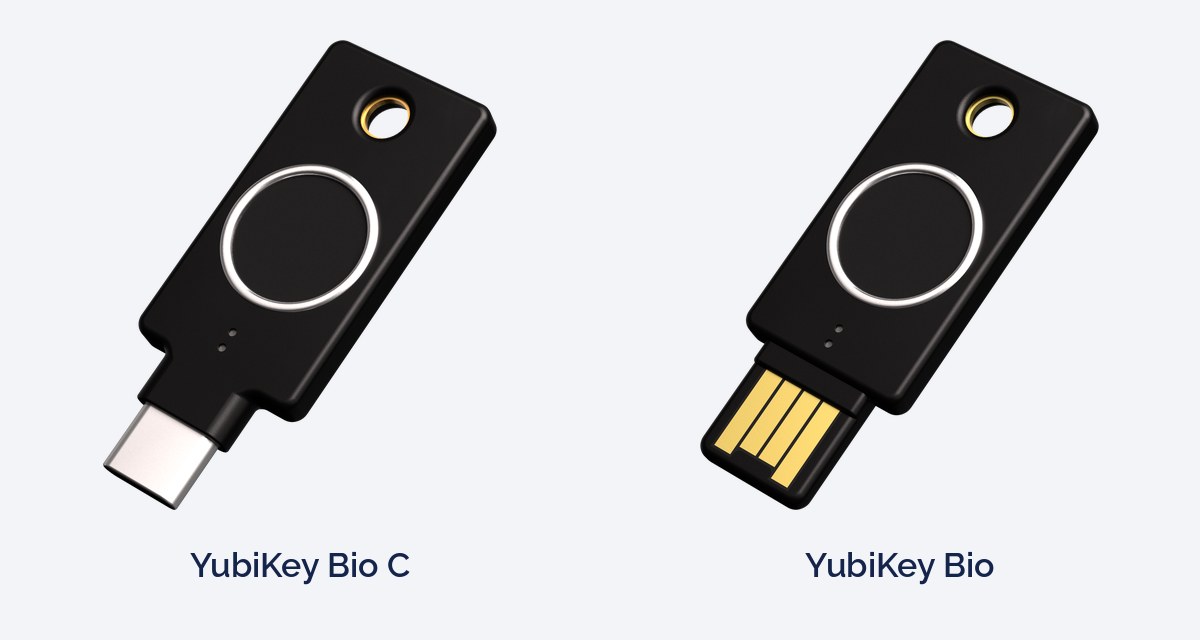
A built-in fingerprint reader replaces the PIN on sites that ask for one. Nice for shared front-desk computers or anyone who hates typing PINs. It has no NFC, so it won’t tap to a phone, and it only does FIDO logins. Pick the Bio C for USB-C or the Bio for USB-A.
YubiKey Bio C (USB-C) on Amazon
YubiKey Bio (USB-A) on Amazon
Always buy two
This is the rule we give every client. Register a primary key you carry and a backup you keep somewhere safe, like a desk drawer at home or the office safe. If you lose one, you sign in with the other and remove the lost key. No lockout, no waiting on a support line.
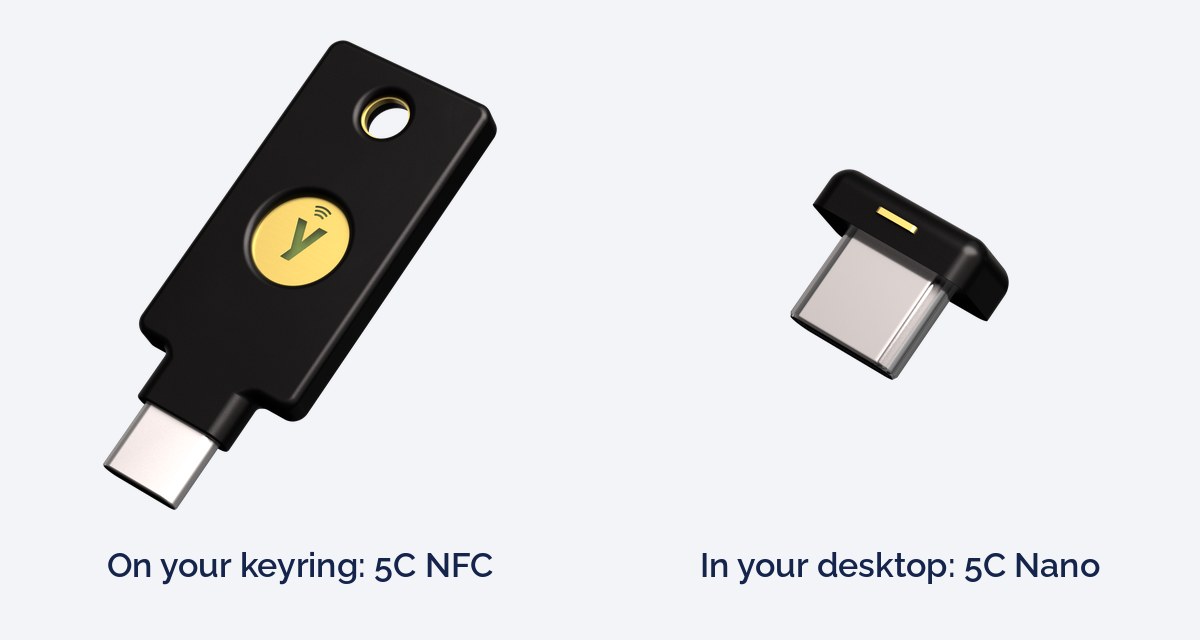
Yubico sells a two-key bundle that pairs a 5C NFC for your keychain with a 5C Nano that stays in your desktop:
YubiKey 5C NFC + 5C Nano bundle on Amazon
Setting one up the right way
- Start with your email account. Microsoft 365 or Google Workspace is the key to everything else, since password resets for your other accounts land there.
- Register both keys on every account before you put the backup away.
- Set a PIN on the key when prompted. Someone who finds your key still can’t use it without the PIN.
- Save the recovery codes each site gives you in your password manager or by printing them in the safe.
- Remove text-message codes as a backup option once the keys work. If SMS stays on the account, an attacker will just pick that option instead.
For a business, Microsoft 365 can go one step further. With Business Premium, your IT team can require phishing-resistant MFA for admins, owners, and anyone who handles money, so a texted code isn’t even an option for those accounts.
Want help rolling keys out to your team?
Buying the keys is the easy part. Getting them registered on every account, enabling the right Microsoft 365 policies, and ensuring nobody locks themselves out is where we come in. For most small offices, that’s an afternoon of work.
If you’re curious how exposed your logins are today, read our 5-step guide for when an employee clicks a phishing link or our cyber hygiene tips. When you’re ready, book a time with me or call us at (410) 219-2695.
Looking for other office gear? See our tech gear we recommend page.